Mandala Studio

Draw one petal.
Get the whole mandala.

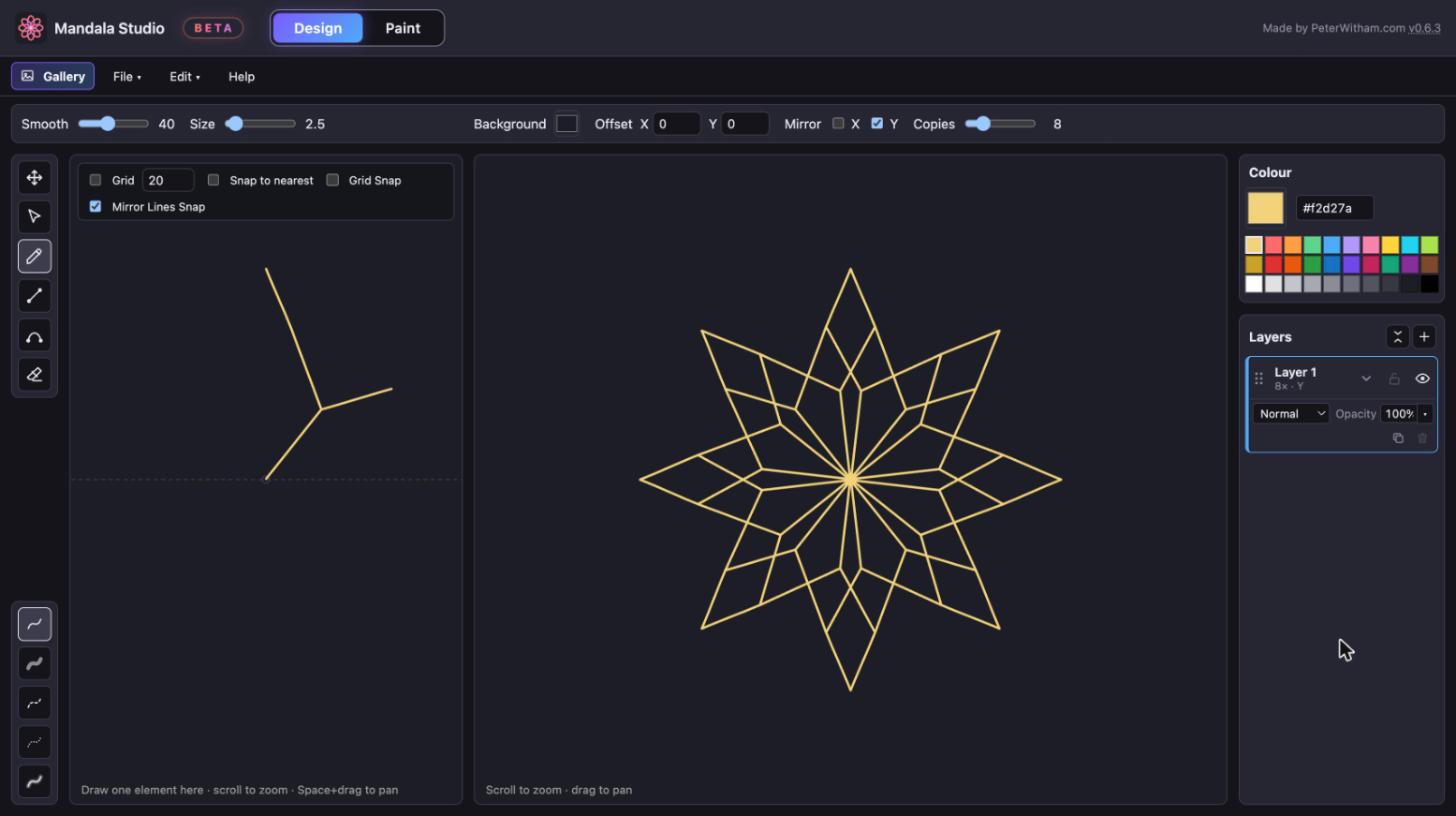
Sketch a single element on a small canvas. The big canvas repeats it around a centre, rotated and mirrored, while your pen is still moving.

Leave your email and platform. We'll write when it's ready.

Go on, draw here.

Three moves, endless patterns

The left canvas is where you draw. The right canvas is where the pattern appears.

  1. Draw one element

    Use the freehand pen, straight lines or the curve tool. Five brushes give you fine ink, marker, dashes and glow. Turn on the grid and snapping when you want it exact.

  2. Choose the symmetry

    Set how many copies go around the centre, switch on X or Y mirroring, and slide the mirror lines off-centre for lopsided, organic shapes. Change your mind later and every stroke re-lays itself out.

  3. Paint and finish

    Switch to Paint to fill the spaces between your lines, brush colour on top, add shadows and glows, then export a print-ready file.

Mandala Studio with a small left canvas holding three lines and a large right canvas showing them as an eight-pointed star.

Watch it grow as you draw

There is no render button. Every line you put down on the left appears on all the copies at once, so you can feel your way to a pattern the way you would with a pencil.

Zoom and pan both canvases, undo and redo as far back as you like, and your work autosaves in the browser.
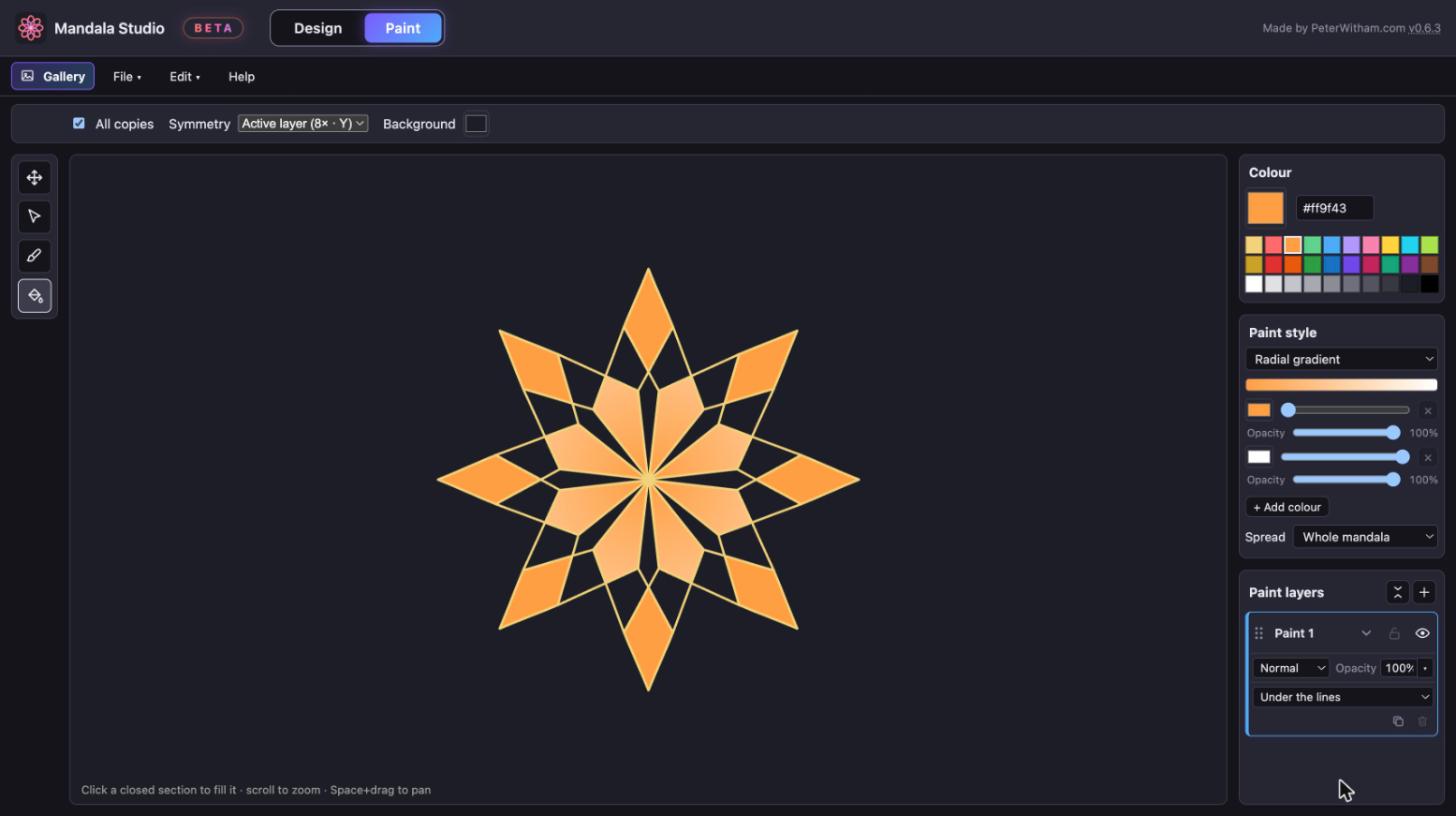
Paint mode with the sections of a mandala filled in solid and radial-gradient colour.

Colour it in

Design mode is for line work. Paint mode is for colour. Tap a section to fill it, and fill all its copies in one click. Brush or airbrush over the top, and ask the paint to stay inside the lines.

Fills are vectors, so they stay sharp when you zoom right in.

Gradients that follow your shapes

Four kinds, each with opacity on every colour.

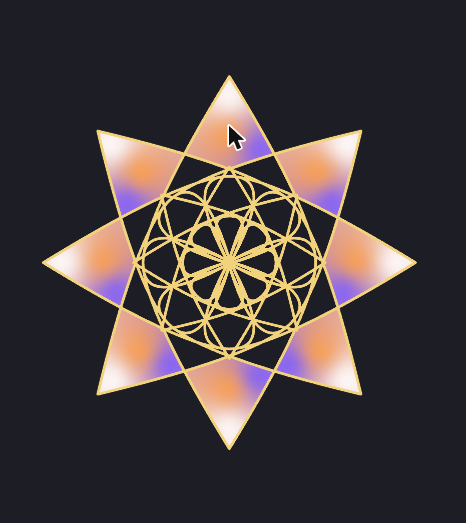
A flower shape filled with a mesh gradient, with draggable colour points inside it.
Linear
Runs corner to corner at any angle, across the whole mandala or fitted to each region.
Radial
Spreads out from a centre point you can drag.
Mesh
Place colours at points inside a shape and let them blend, without bleeding across gaps between petals.
Contour
Colour that follows the outline from the edge to the middle.
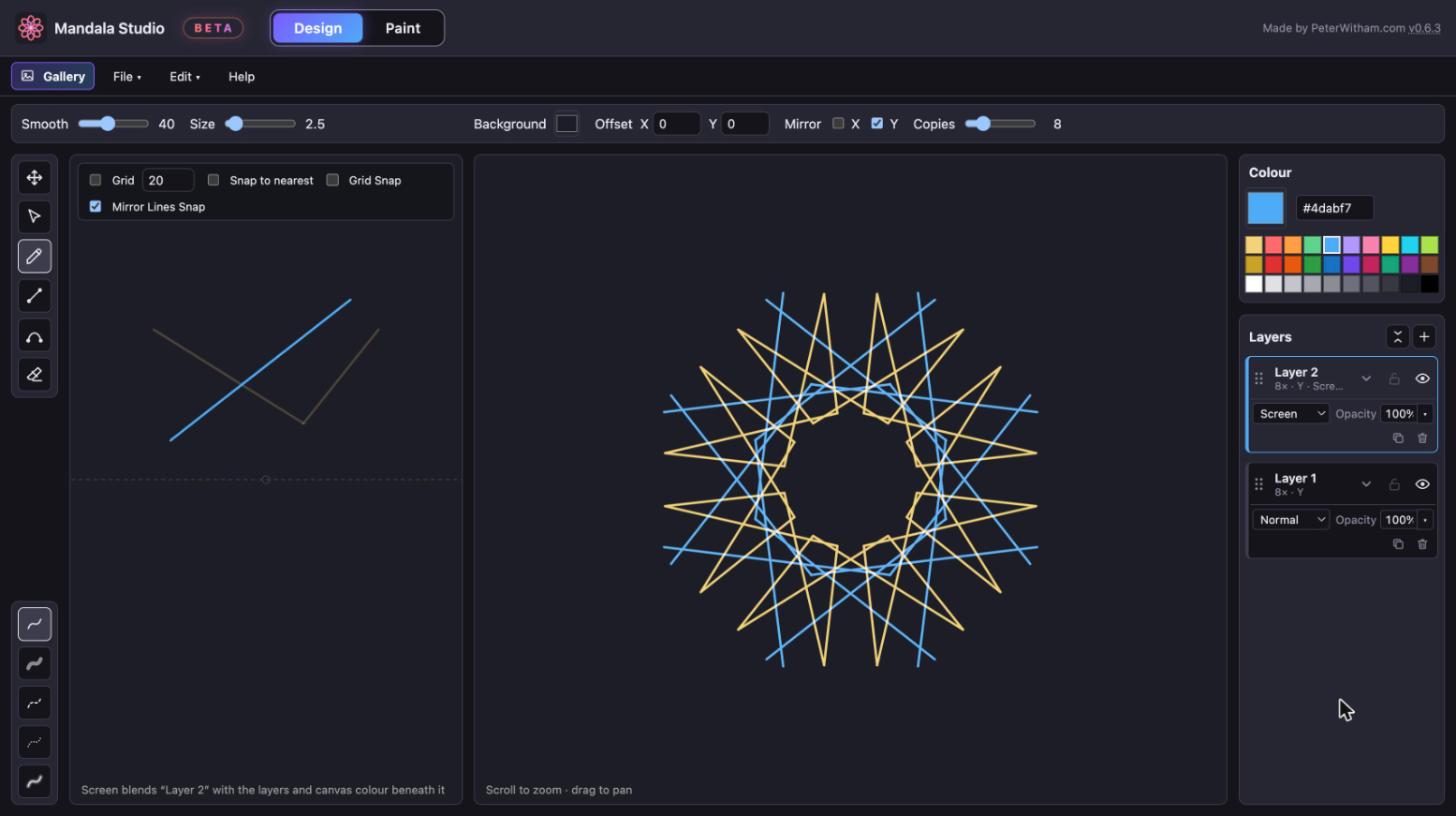
Two layers with different symmetry, the upper one using a Screen blend mode.

Layers with their own symmetry

Put a 5-fold flower over an 8-fold star. Each layer has its own copies, mirrors, opacity and blend mode, and you can hide, lock, reorder and duplicate them like you would anywhere else.

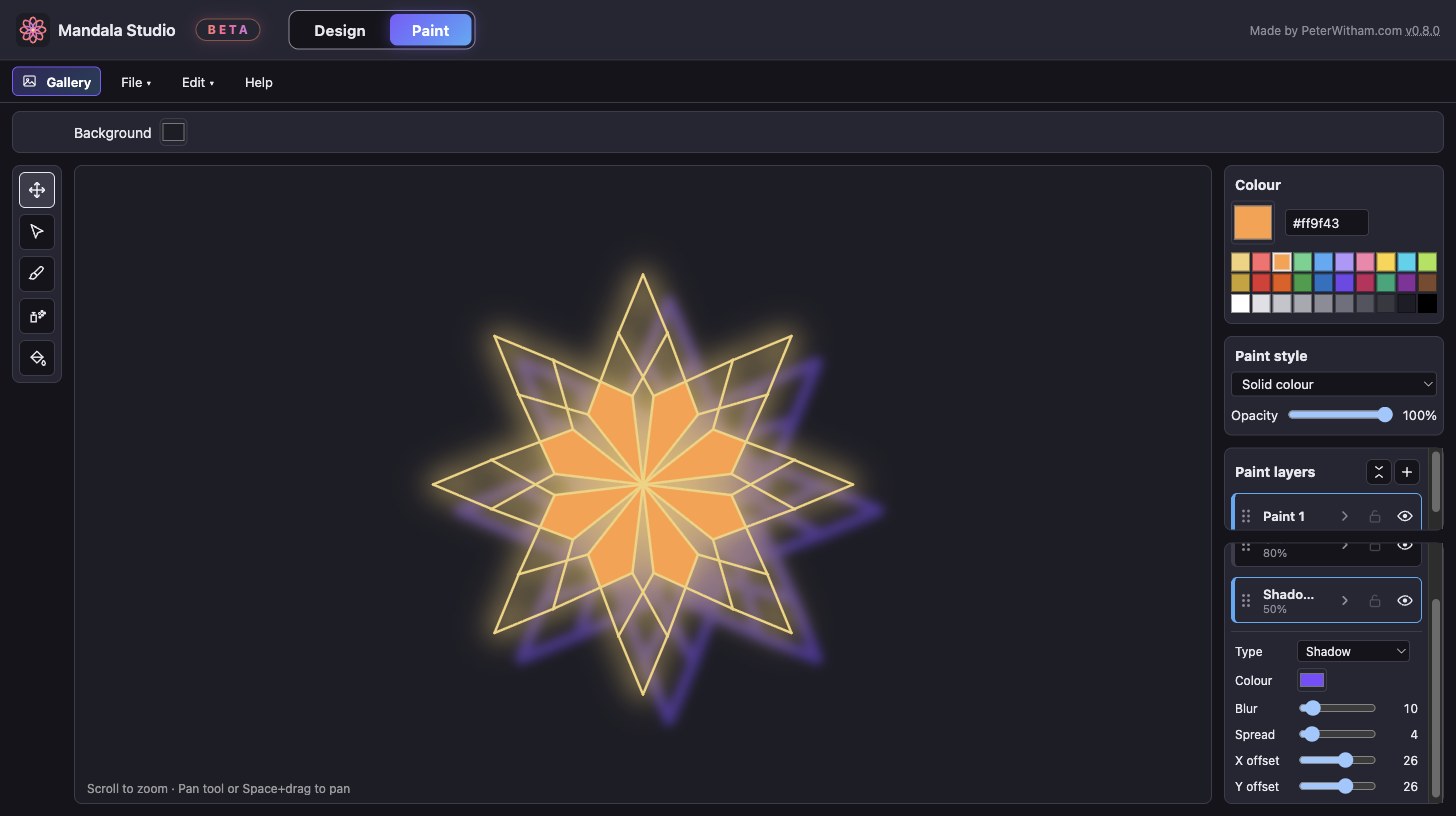
A mandala with a soft glow behind it and the Effects panel open.

Shadow and glow

Add a drop shadow or a halo of light behind the whole drawing. Set blur, spread, colour and offset, and stack up to five.

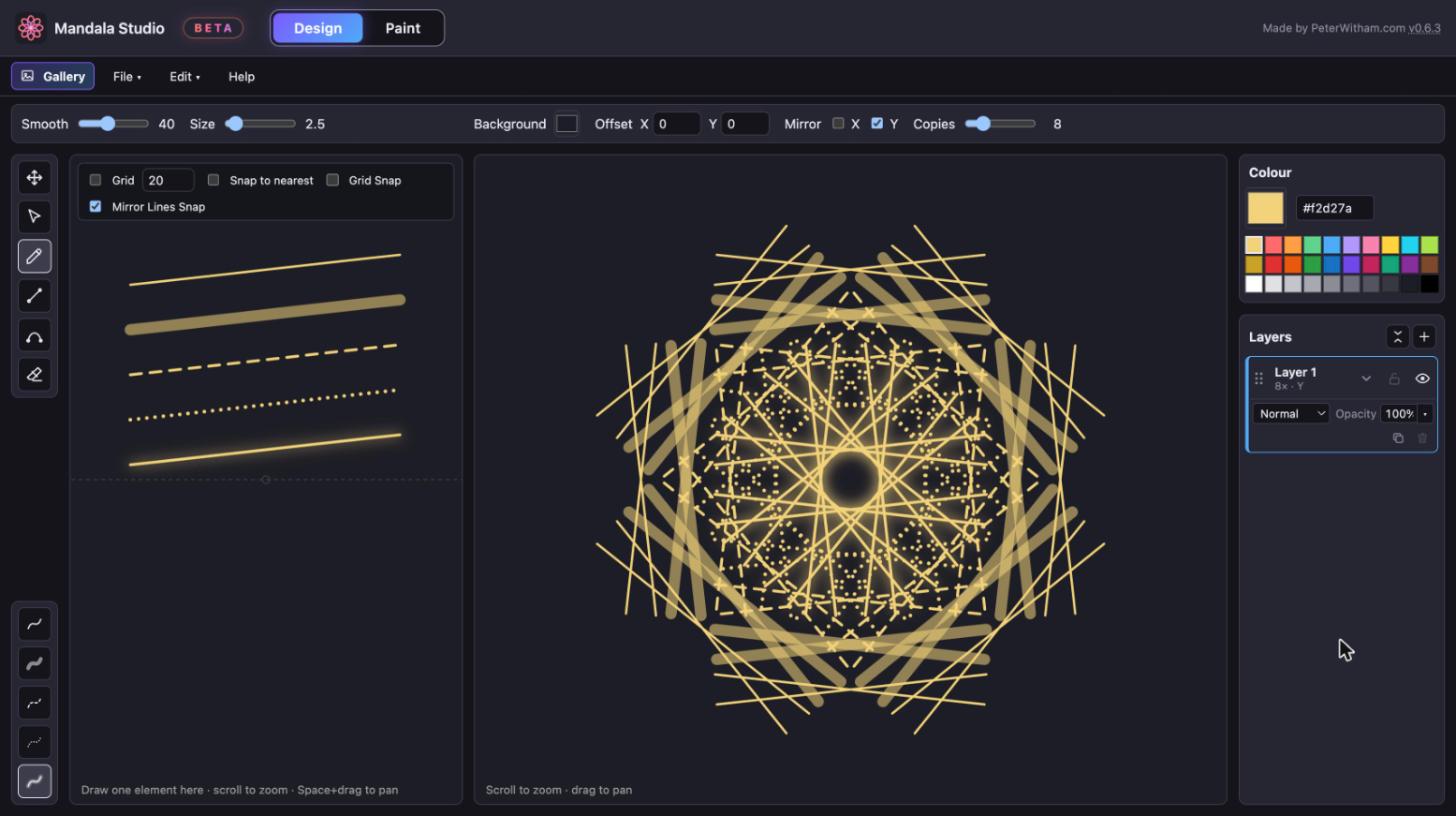
Five brush strokes: fine pen, marker, dashed, dotted and glow.

Five brushes

Pen, marker, dashed, dotted and glow, with smoothing you control.

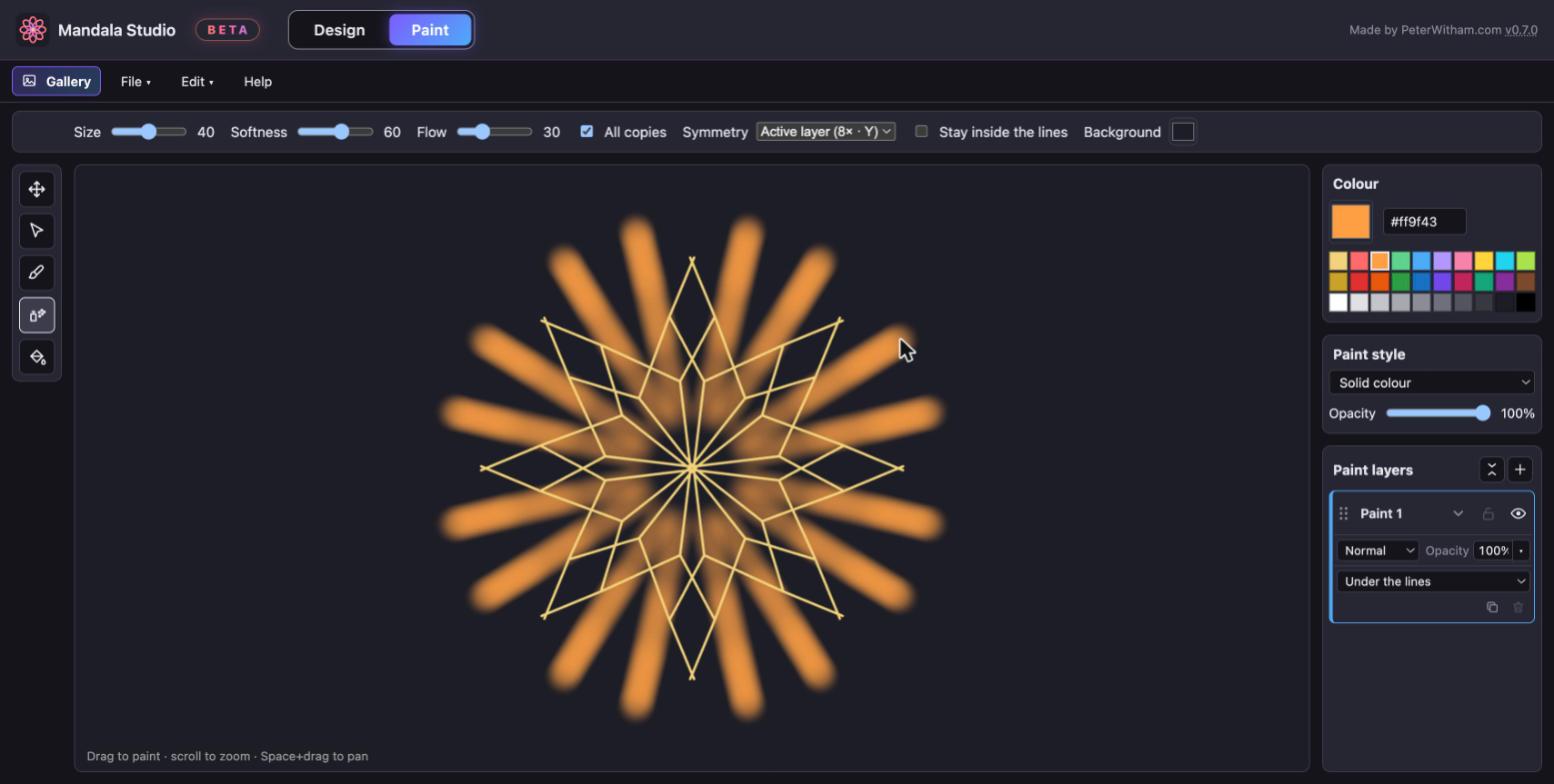
Soft airbrushed paint building up on a mandala.

Airbrush

Soft edges, and paint that builds up when you hold still.

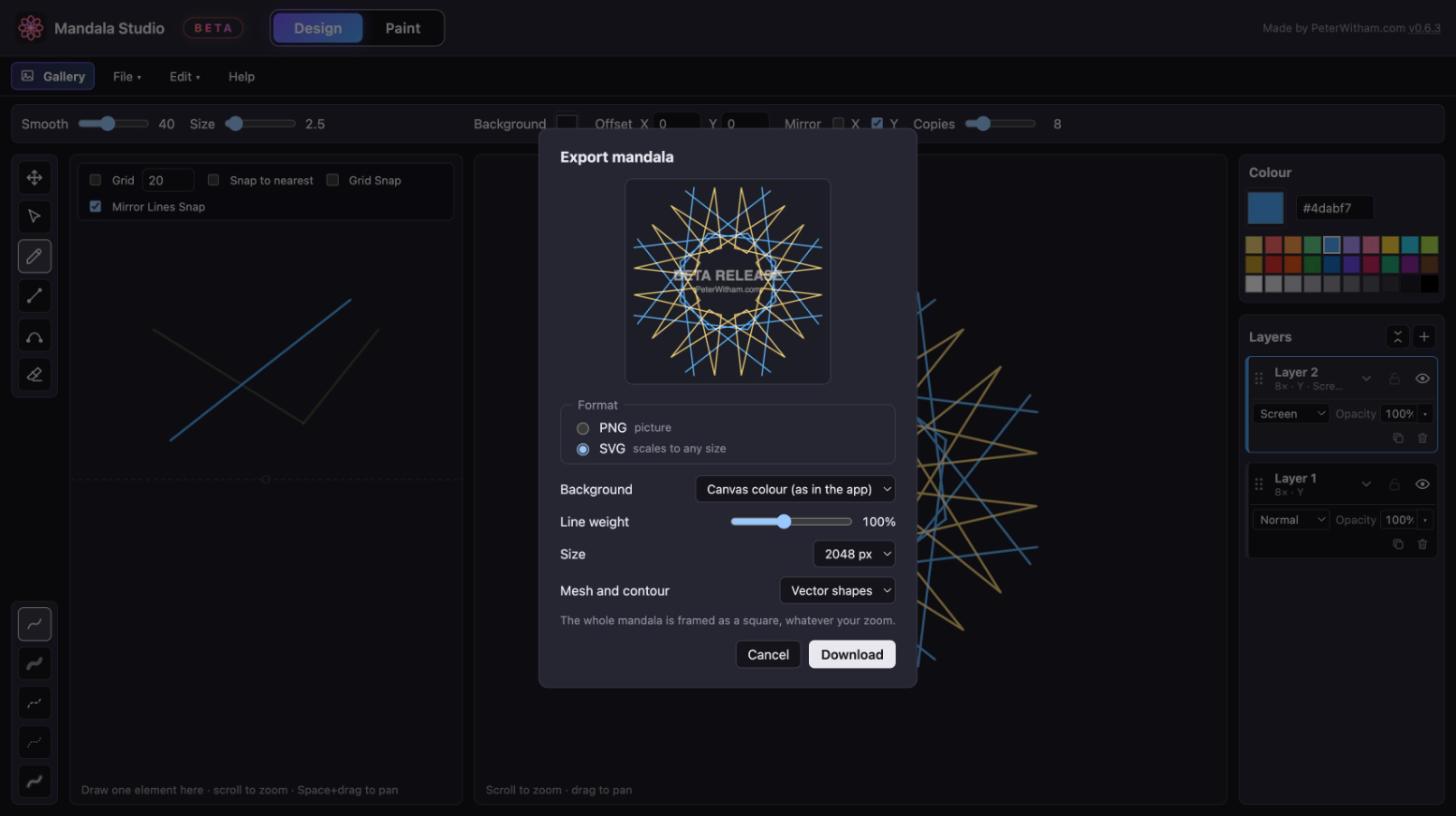
The Export dialog set to SVG with a preview of the mandala.

Take it anywhere

Export PNG at any size, or SVG that stays crisp on a poster, a laser cutter or a t-shirt. Choose a transparent background, lighten dense designs with line weight, and keep every layer as its own group for your vector editor.

Save drawings to the in-browser gallery, or download them as files.

One stroke is all it takes

Join the beta and be first to draw something.

Join the beta

Currently in beta. Exports carry a small beta mark.